
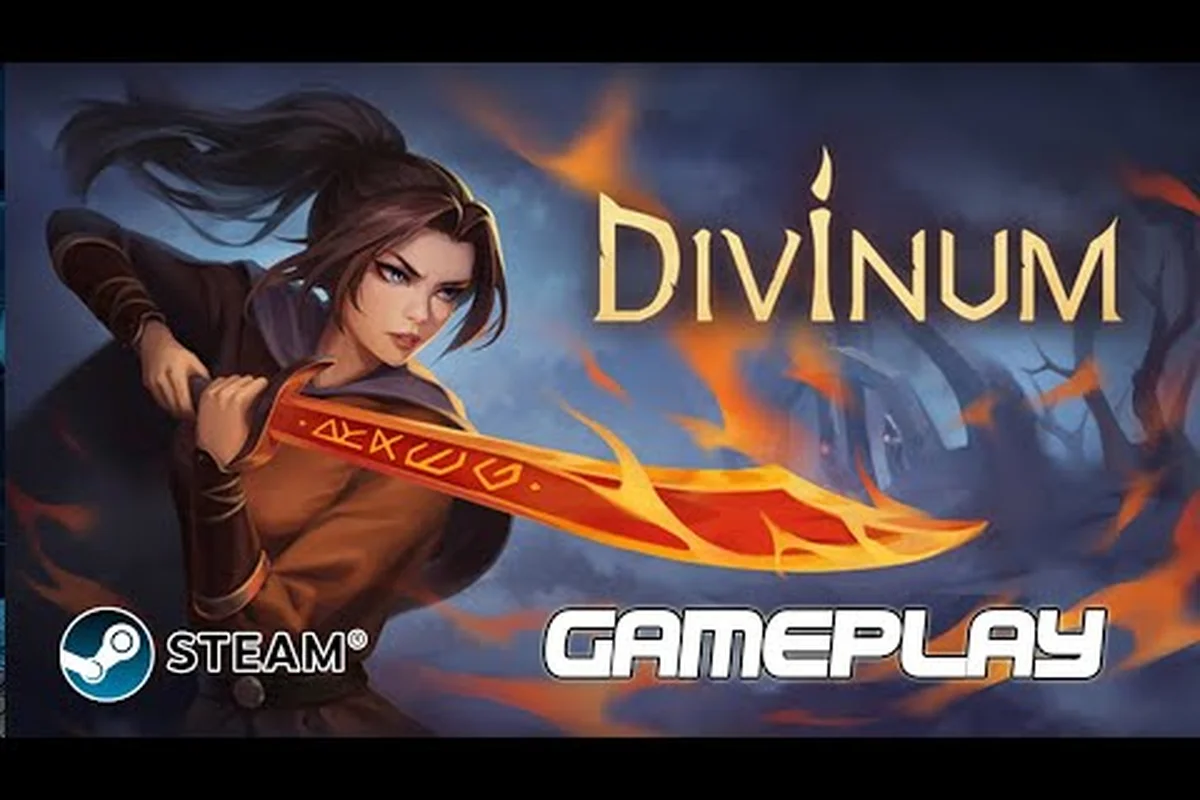
Knowing whether your rig can run Divinum matters more than you might think, especially since the official Divinum system requirements on Steam list both Windows and macOS support but skip Steam Deck verification entirely. The action-adventure from Sigil Games launches August 28, 2026, and the free demo (version 0.39.1) is the best way to test performance before committing. Get the hardware picture straight first, then we will cover how parry and dodge inputs behave across different setups, because combat timing changes when you switch between keyboard, controller, and handheld modes.
Divinum System Requirements: Official Minimum and Recommended Specs
The Steam store page for Divinum lists separate requirements for Windows and macOS, and the gap between minimum and recommended hardware is smaller than most modern action games. According to the official Divinum Steam page, the game targets 60 FPS on recommended hardware, which matters for a combat system built around precise parry windows and dodge i-frames.
| Component | Minimum (Windows) | Recommended (Windows) | Minimum (macOS) | Recommended (macOS) |
|---|---|---|---|---|
| OS | Windows 10 64-bit | Windows 11 64-bit | macOS 12 Monterey | macOS 14 Sonoma |
| Processor | Intel Core i5-8400 / AMD Ryzen 3 3300X | Intel Core i7-9700K / AMD Ryzen 5 5600X | Apple M1 | Apple M1 Pro / M2 |
| Memory | 8 GB RAM | 16 GB RAM | 8 GB RAM | 16 GB RAM |
| Graphics | GTX 1060 6GB / RX 580 8GB | RTX 2060 / RX 5700 XT | Apple M1 (8-core GPU) | Apple M1 Pro / M2 (10-core GPU) |
| Storage | 15 GB SSD | 15 GB NVMe SSD | 15 GB SSD | 15 GB NVMe SSD |
The pixel-art style means the GPU requirements stay modest, but the game still demands a solid CPU because combat physics and enemy AI calculations run in real time. Players on the Steam community forums report that the game holds 60 FPS on minimum hardware at 1080p with minor drops during heavy particle effects, which aligns with the official specs.
Storage note: the 15 GB requirement applies to both the full game and the demo, though the demo currently takes about 6 GB according to community reports. An SSD is strongly recommended over an HDD because the game streams environment assets as you explore the island, and HDD users report noticeable hitches when crossing area boundaries.
Divinum Mac Support: What Apple Silicon Users Should Expect
Divinum mac support is confirmed for launch day, which is refreshing for a genre that often skips macOS entirely. The official website states the game comes to PC in 2026 with consoles TBA, but the Steam listing explicitly includes macOS as a supported platform, and the demo has been playable on Apple Silicon since November 2025.
Performance on Apple M1 and M2 Chips
Community testing on the demo shows that the Apple M1 base model runs Divinum at 1080p with medium settings and holds 45-55 FPS during exploration, dropping to 40 FPS in combat-heavy areas with multiple enemies on screen. The M1 Pro and M2 chips handle 1080p high settings comfortably at 60 FPS, and the M2 Pro can push 1440p if you accept occasional dips during boss fights.
| Mac Model | Resolution | Settings | Average FPS | Notes |
|---|---|---|---|---|
| M1 (8-core GPU) | 1080p | Medium | 45-55 | Drops to 40 in combat |
| M1 Pro (14-core GPU) | 1080p | High | 60 | Stable in most areas |
| M2 (10-core GPU) | 1080p | High | 60 | Minor dips with particles |
| M2 Pro (16-core GPU) | 1440p | High | 50-60 | Best Mac experience |
Intel-based Macs are not officially supported, and players report that the game struggles significantly on older Intel MacBook Pros even at minimum settings. If you are on an Intel Mac, the Windows version via Boot Camp runs better, but the macOS build is clearly optimized for Apple Silicon only.
Rosetta 2 note: the game runs natively on Apple Silicon, so no translation layer is needed, which explains the solid performance on base M1 hardware. The demo does not support MetalFX upscaling yet, but the developer has mentioned performance improvements in the launch version according to Steam news posts.
Divinum Steam Deck: Compatibility and Performance Analysis
Divinum Steam Deck support is not officially verified, which creates uncertainty for handheld players. The Steam store page lists full controller support and keyboard-only options, but Valve has not assigned a Steam Deck compatibility rating as of August 2026. Community testing on the Deck provides a clearer picture.
Default Settings and Frame Rate on Deck
Players running the demo on Steam Deck report that the game defaults to medium settings at 1280x800 with TDP limited to 15W. The frame rate hovers around 50-60 FPS in exploration areas but drops to 40-45 FPS during intense combat sequences with multiple enemies and particle effects. Setting the refresh rate to 40Hz with a 40 FPS cap provides the most stable experience.
| Steam Deck Setting | Value | Impact |
|---|---|---|
| Resolution | 1280x800 | Native, sharp pixel art |
| Graphics Preset | Medium | Balanced quality/performance |
| TDP Limit | 15W | ~2.5 hours battery life |
| Refresh Rate | 40Hz | Stable frame pacing |
| FSR | Off | Causes shimmering on pixel art |
The game supports the Deck's trackpads for camera control in addition to the standard joystick layout, which some players prefer for precise platforming sections. However, the parry timing feels slightly different on Deck because of the display latency inherent to the handheld's panel, so players should practice the timing in the demo's opening areas before attempting difficult encounters.
Battery life is the main tradeoff on Deck. At 15W TDP, you get roughly 2.5 hours of playtime, but pushing to 25W for stable 60 FPS cuts that down to about 1.5 hours. Most community recommendations favor the 40Hz cap for longer sessions, especially since the game's combat rewards consistency over raw frame rate.
Divinum How to Parry: Input Timing Across Platforms
The parry mechanic is the cornerstone of Divinum's defensive toolkit, and the input timing varies subtly depending on your platform and controller choice. The demo version 0.39.1 refined the parry window based on 422 feedback forms collected during the playtest, according to the official Steam news announcement.
Parry Window and Input Mechanics
The parry window in Divinum is 6 frames at 60 FPS (about 100 milliseconds), which is forgiving compared to similar action games. Press the parry button (default Q on keyboard, L1/LB on controller) just before an enemy attack connects. The game rewards successful parries with a slow-motion effect that opens a guaranteed counter-attack window.
| Platform | Parry Button | Window (60 FPS) | Input Latency |
|---|---|---|---|
| Keyboard | Q | 6 frames | Lowest |
| Xbox Controller | LB | 6 frames | Low |
| DualSense | L1 | 6 frames | Low |
| Steam Deck | L1 (back grip optional) | 6 frames | Moderate |
Keyboard players often find parry timing easier because of the instant key actuation compared to trigger-style buttons. Controller players should note that the DualSense's adaptive triggers do not affect the parry button, but the haptic feedback provides a subtle vibration cue when the parry window opens, which helps with timing.
Practice method: the demo's prologue includes a training dummy that attacks in a fixed pattern. Use this to internalize the 6-frame window before facing real enemies. The parry timing does not change between demo and full game according to community testing, so muscle memory carries over to launch.
Divinum How to Dodge: I-Frames and Positioning Strategy
Dodging complements parrying in Divinum's defensive system, and knowing when to dodge instead of parry is the difference between clean runs and repeated deaths. The dodge move grants i-frames that let you phase through attacks, but the recovery animation leaves you vulnerable if you mistime it.
Dodge Mechanics and I-Frame Duration
The dodge in Divinum has 10 frames of invincibility at 60 FPS (about 167 milliseconds), which is generous for an action game. Press the dodge button (default Space on keyboard, A/B on controller) in any direction to perform a quick dash. The dodge can be chained into attacks, and successful dodges build Focus Meter that powers special abilities.
| Platform | Dodge Button | I-Frames (60 FPS) | Recovery Frames |
|---|---|---|---|
| Keyboard | Space | 10 frames | 8 frames |
| Xbox Controller | A | 10 frames | 8 frames |
| DualSense | Cross | 10 frames | 8 frames |
| Steam Deck | A (or back grip) | 10 frames | 8 frames |
The phase dash variant, unlocked later in the game, extends i-frames to 14 frames but costs Focus Meter. Community guides recommend using the standard dodge for positioning and saving phase dash for boss attacks with long active frames. The dodge does not cancel recovery into another dodge, so mashing the button leaves you vulnerable during the 8-frame recovery window.
Dodge vs. parry decision: parry when you are close enough to punish the enemy immediately, dodge when you need to reposition or when the attack has a large hitbox that makes parry timing risky. The demo's mid-game combat slice includes enemies that require both approaches, making it an ideal training ground for the full game.
Optimizing Performance: Graphics Settings That Matter Most
The Divinum system requirements give you the baseline, but the in-game graphics settings have a significant impact on frame rate stability. Community testing on the Steam forums identified which settings matter most for maintaining 60 FPS on minimum hardware.
| Graphics Setting | Performance Impact | Recommended Value |
|---|---|---|
| Shadow Quality | High | Medium |
| Particle Effects | High | Medium |
| Post-Processing | Medium | Low |
| Texture Quality | Low | High |
| Anti-Aliasing | Low | Off or FXAA |
Shadow Quality has the largest performance impact on both Windows and Mac, and dropping it from High to Medium yields a 10-15 FPS improvement in outdoor areas. Particle Effects matter during combat, where explosions and magic effects can tank frame rates on minimum hardware. Texture Quality has minimal performance impact because of the pixel-art style, so keep it High for visual clarity.
The game includes a frame rate cap option (30/60/120/Unlimited) and an FPS counter overlay. Players on minimum hardware should cap at 60 FPS rather than leaving it unlimited, because uncapped frame rates cause the game to render extra frames that stress the CPU without visual benefit.
Resolution scaling is available but not recommended for pixel-art games, because upscaling algorithms blur the crisp sprite edges that define the art style. If you need more performance, lower the internal resolution to 900p instead of using FSR or similar upscaling tools. The Divinum art style guide explains why the pixel-art presentation benefits from native resolution rendering.
Preparing for Launch: Demo Testing and Hardware Checklist
The Divinum demo (version 0.39.1) remains available on Steam and serves as the final content update before launch. Downloading the demo is the most reliable way to verify your hardware meets the Divinum system requirements, because the demo includes both the story prologue and a mid-game combat slice with a wide variety of enemies and abilities.
Pre-Launch Hardware Checklist
Before August 28, run through this checklist to ensure your setup is ready:
-
Verify storage space: the full game requires 15 GB, so clear space on your SSD before launch day.
-
Update GPU drivers: both NVIDIA and AMD released driver updates in August 2026 that include optimizations for the game's launch build.
-
Test the demo: the demo's combat slice is more demanding than the prologue, so play through it to gauge performance in combat-heavy scenarios.
-
Set up controller profiles: if you play with a controller, configure button mappings in Steam Input before launch to avoid mid-game interruptions.
-
Check Mac compatibility: Apple Silicon users should confirm they are running macOS 12 or later, as the game requires Metal 3 support.
The demo also includes the parry and dodge training areas, which let you practice the 6-frame parry window and 10-frame dodge i-frames before facing the full game's enemies. Players who complete the demo's combat challenges report feeling significantly more prepared for the launch content, because the muscle memory for defensive timing carries over directly.
Save compatibility note: the Steam news announcement mentions that saves from previous demo versions may work, but a new save is recommended for the prologue due to the extended story content in version 0.39.1. For the full game, starting fresh is the intended experience, since the island's secrets unfold progressively through exploration.
Frequently Asked Questions
What are the minimum Divinum system requirements for PC?
The minimum specs require Windows 10 64-bit, an Intel Core i5-8400 or AMD Ryzen 3 3300X, 8 GB RAM, and a GTX 1060 6GB or RX 580 8GB. The game needs 15 GB of SSD storage. These specs target 1080p at 60 FPS with medium settings.
Does Divinum support Mac computers?
Yes, Divinum supports macOS 12 Monterey or later on Apple Silicon chips. The M1 base model runs the game at 1080p medium settings with 45-55 FPS, while M1 Pro and M2 chips handle 1080p high settings at 60 FPS. Intel Macs are not officially supported.
Is Divinum verified for Steam Deck?
Divinum does not have an official Steam Deck verification rating as of August 2026, but community testing shows the game runs well on Deck at medium settings with a 40Hz refresh cap. Expect 40-50 FPS in combat-heavy areas and roughly 2.5 hours of battery life at 15W TDP.
How many frames is the parry window in Divinum?
The parry window is 6 frames at 60 FPS, which translates to about 100 milliseconds. Press the parry button (Q on keyboard, L1/LB on controller) just before an enemy attack connects to trigger a slow-motion counter window. The timing is consistent across all platforms.
What is the difference between parry and dodge in Divinum?
Parry requires precise timing (6 frames) but opens a guaranteed counter-attack window, while dodge grants 10 frames of invincibility and allows repositioning. Use parry when close enough to punish, and dodge when you need to avoid large hitboxes or create distance. Both build the Focus Meter when executed successfully.